
You don’t need to explore everything at once. Log in, choose one lesson, and take one action. Use the screenshots below as your guide. Select any image to open the full-size view.
Step 1: Log In
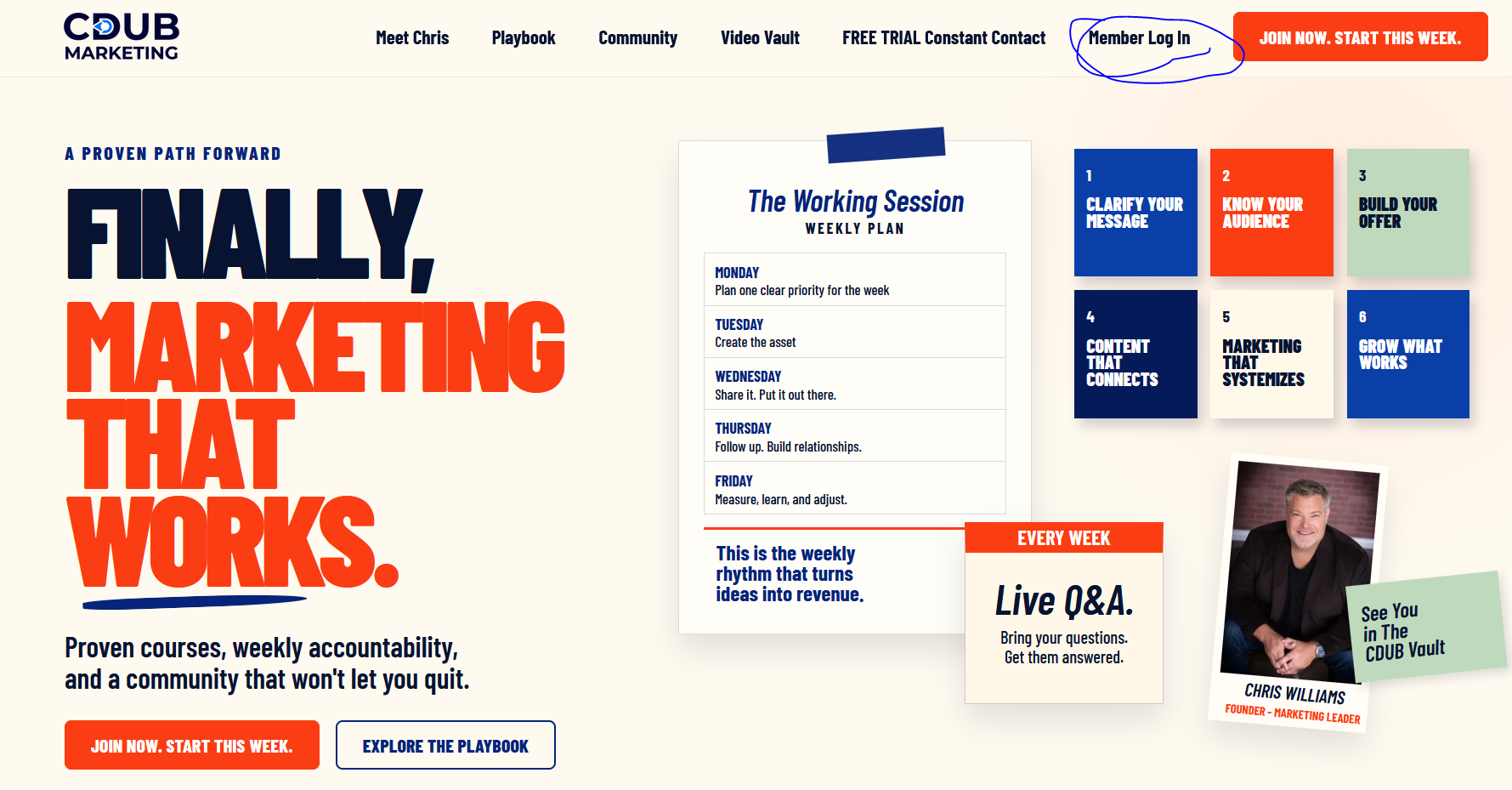
Start at CDUB Marketing and select Member Log In in the top menu. This takes you to the courses site, your starting point for learning and putting ideas into action.
Step 2: Save This Courses Page
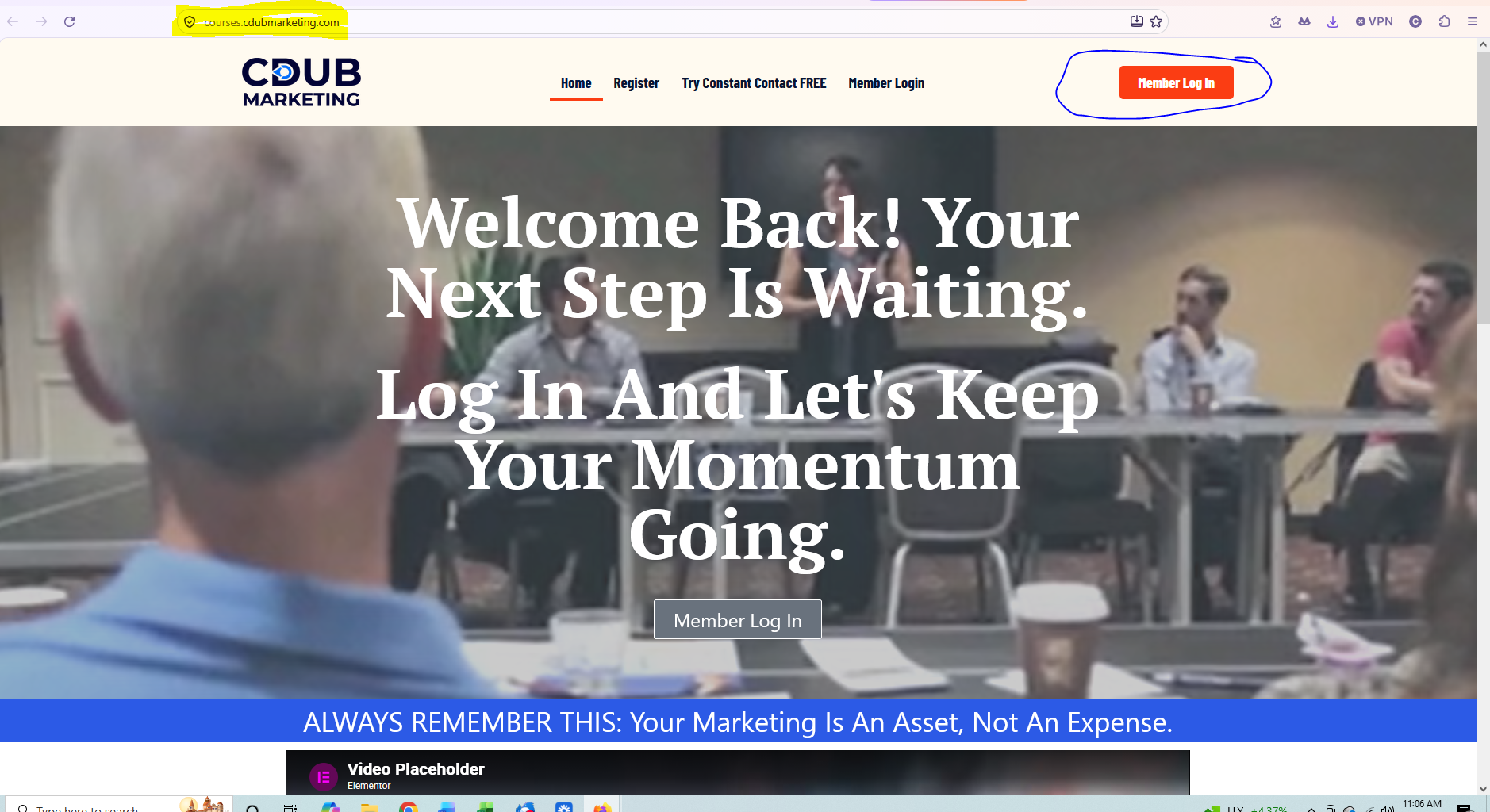
Bookmark the courses homepage in your browser so your next visit is one click away. Select Member Login to reach the sign-in screen. A simple shortcut makes it easier to keep showing up.
Step 3: Your Log In Page
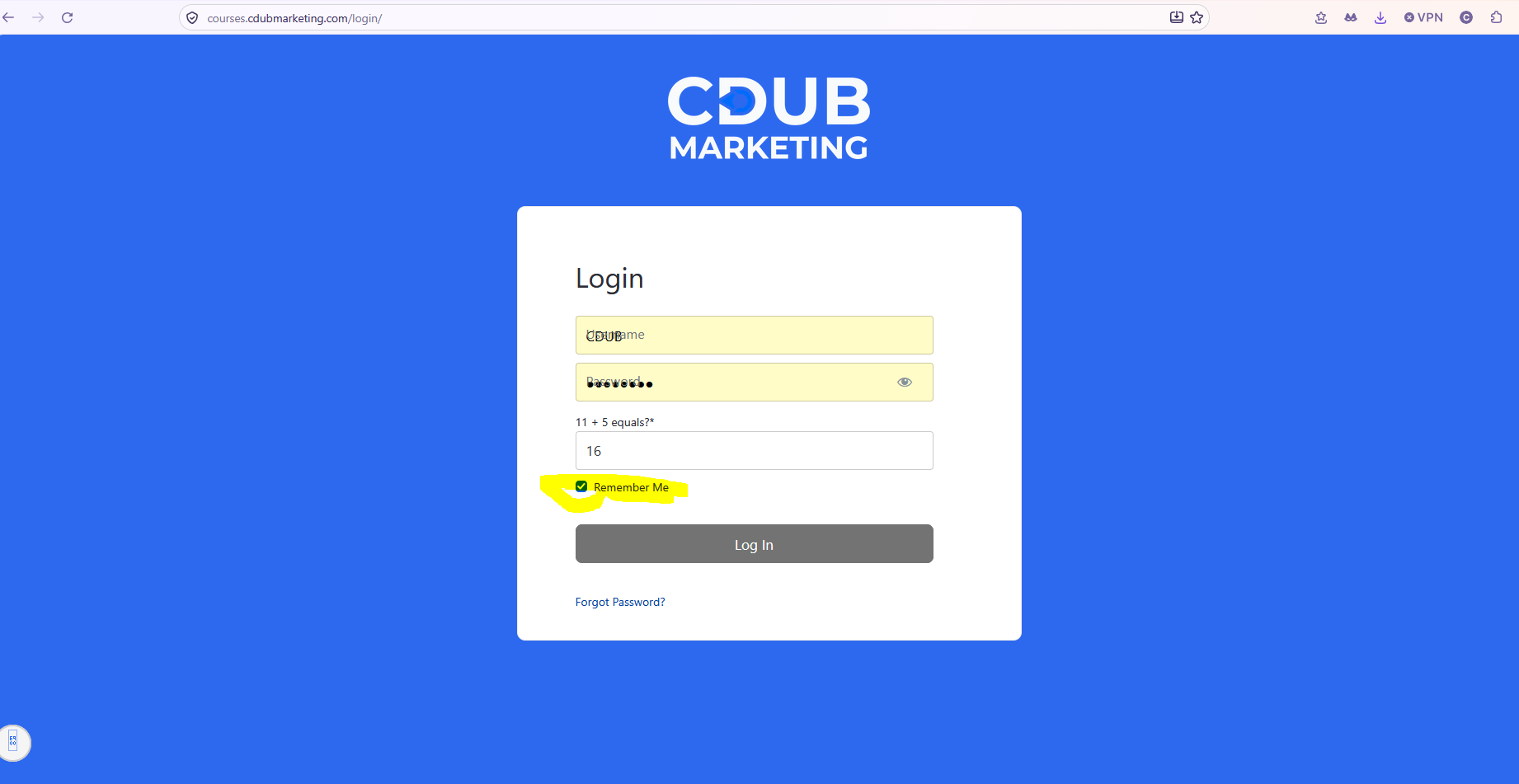
Enter the email address and password for your membership, complete the verification shown, and select Login. On your own device, you can choose Remember Me. If you need a password reset, use Forgot Password? below the form.
Step 4: Your Dashboard
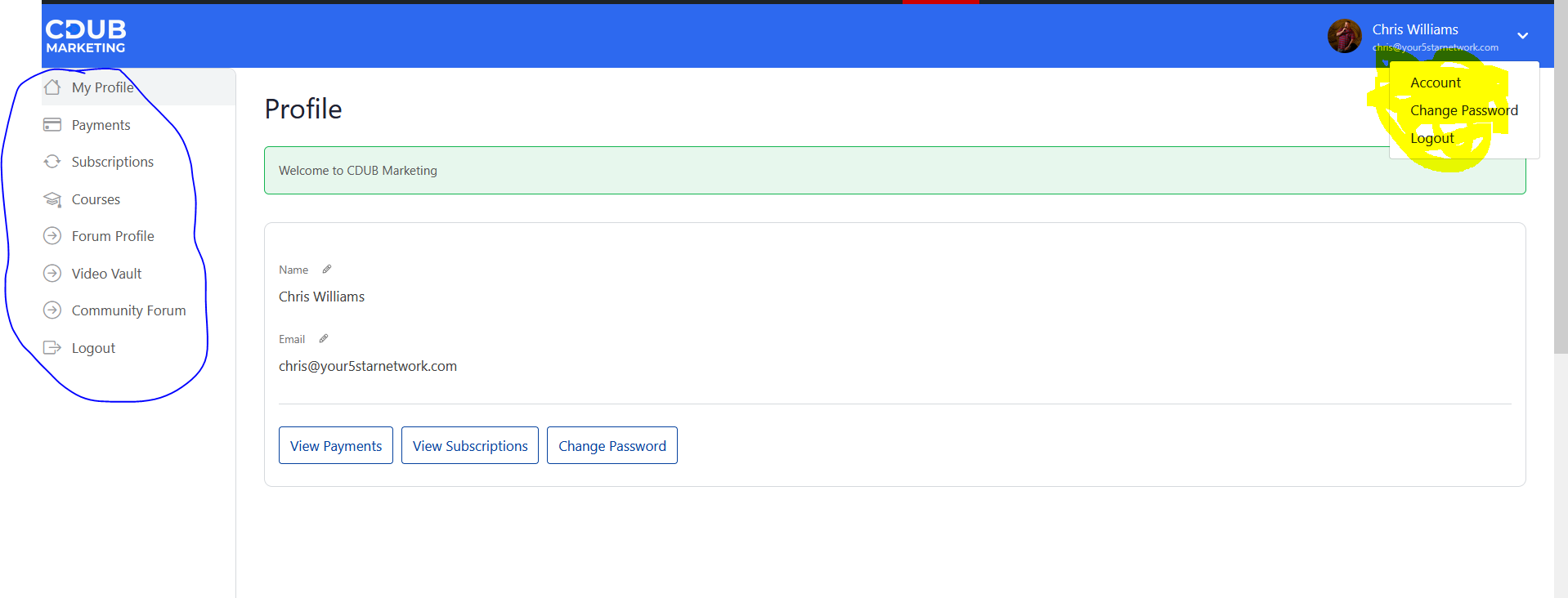
You’re in! Use the left menu to find Courses, Video Vault, and Community Forum. My Profile keeps your account details handy, while the menu beside your name includes account and password options. Pick one next step and get moving.
Step 5.1: Access Courses and Progress
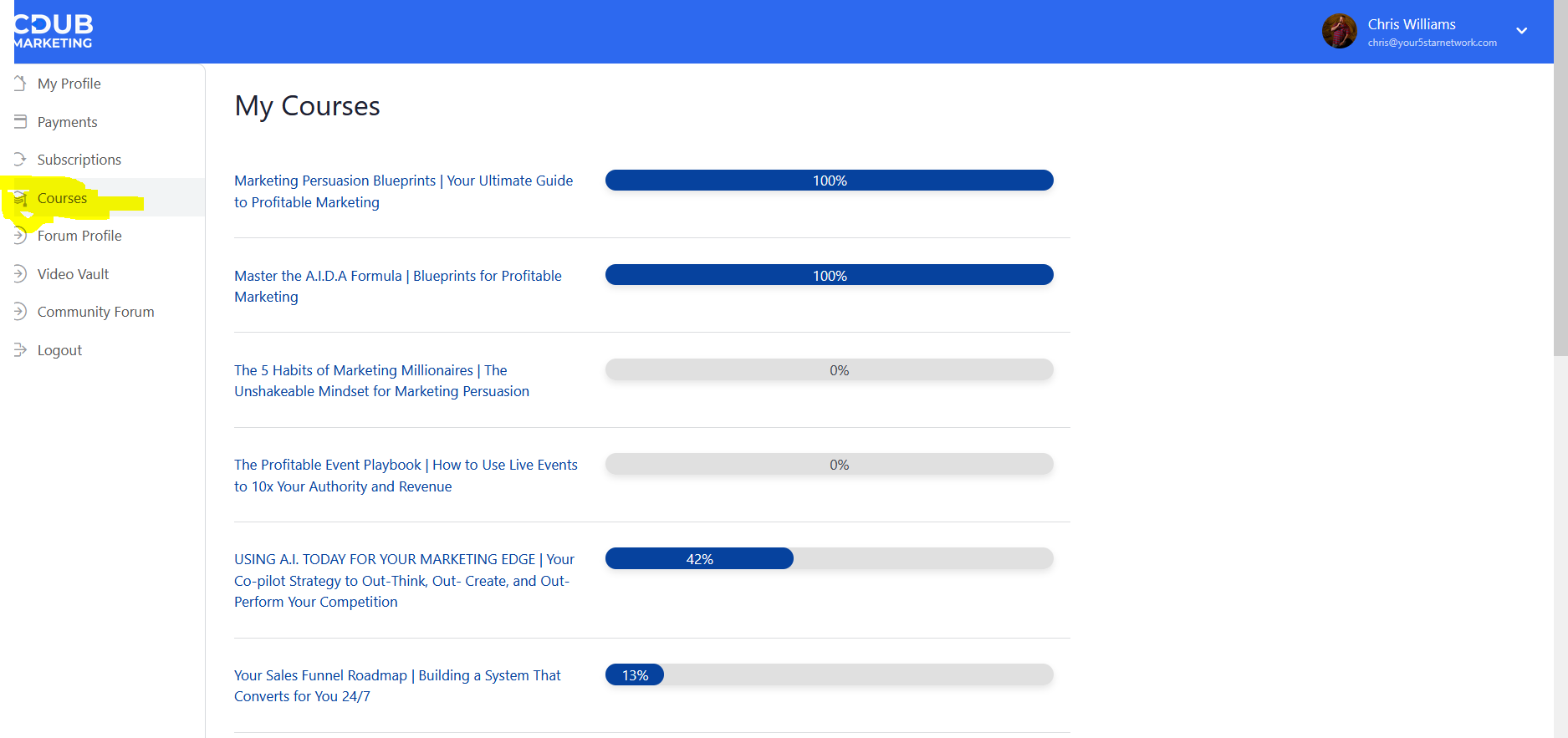
Select Courses to see My Courses and the progress bars beside each course. Choose the course you want to work on, then return here to see how far you’ve come. Focus on one useful lesson at a time.
Step 5.2: Course Sample
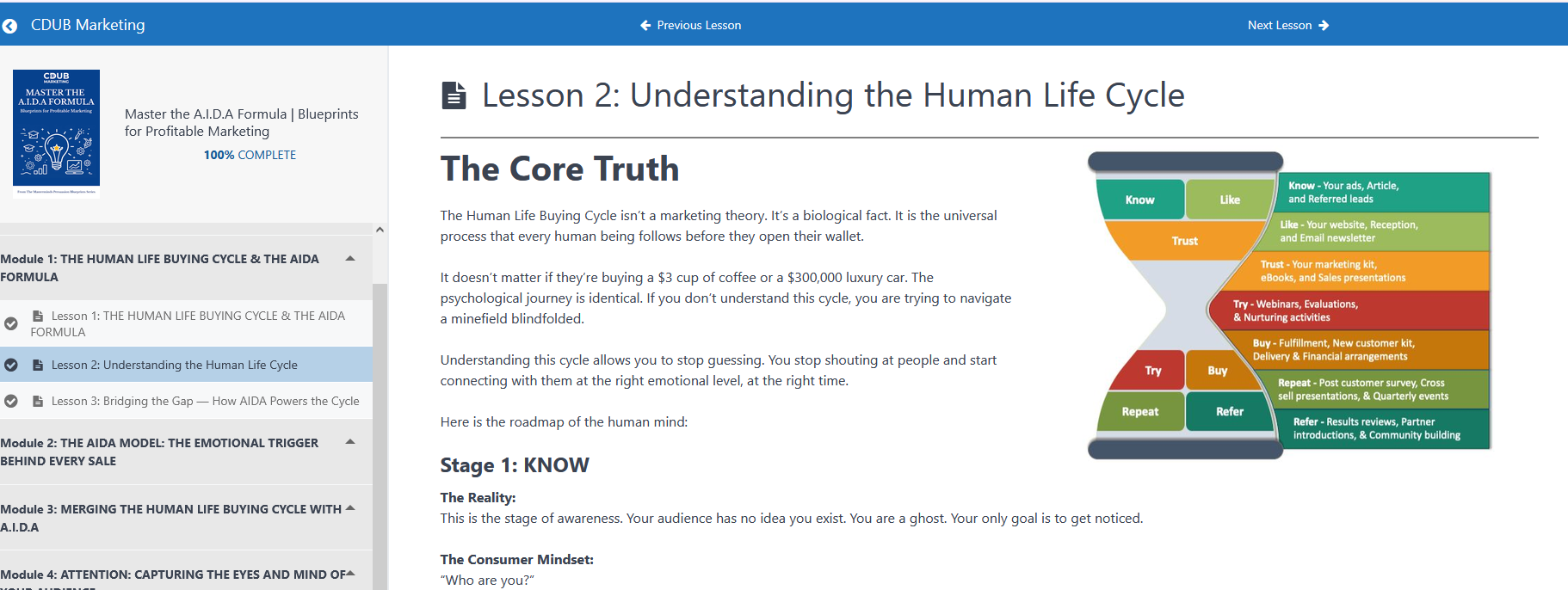
Inside a course, use the lesson list on the left to move through the material. Read the lesson, review its examples, and use the lesson navigation to continue. Before moving on, choose one idea you can apply to your business.
Step 6: Video Vault
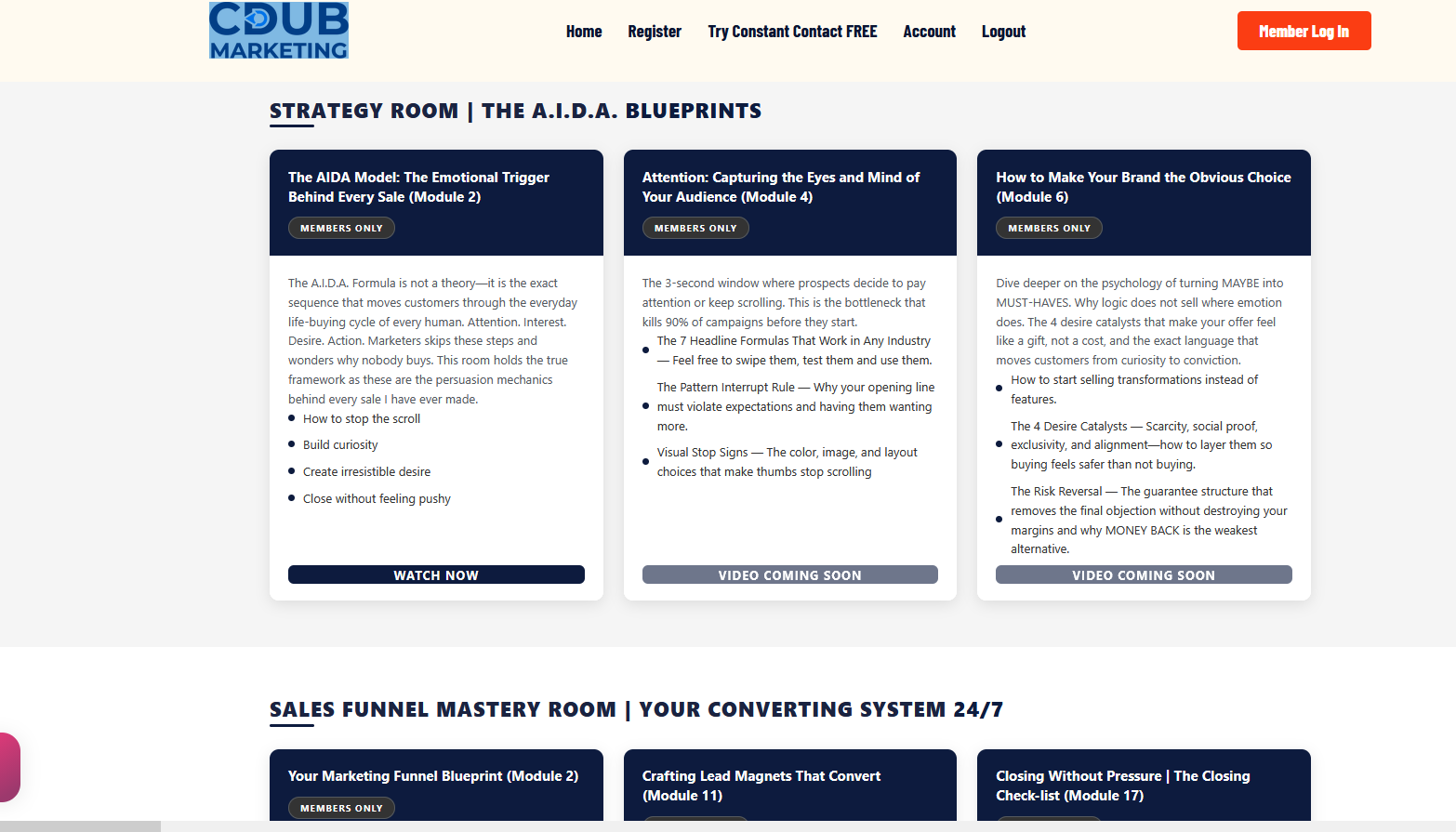
Choose Video Vault from your dashboard to explore the training library. Browse the topic rooms, find a subject that matches your current challenge, and choose an available video. Start with the question you want to solve today.
Step 6.2: One Minute Mentor Included
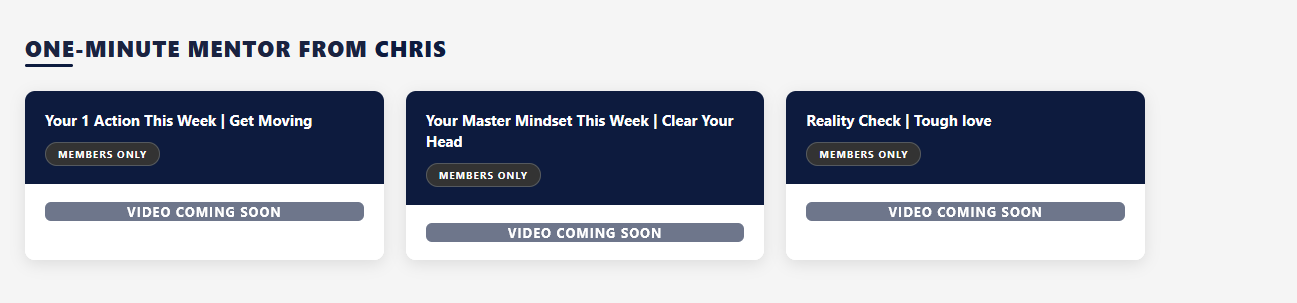
Look for One-Minute Mentor from Chris in the Video Vault. These short updates give you a quick place to refocus and choose your next action. Cards marked Video Coming Soon are previews, so return when the video is available.
Step 7: Community Forum for Feedback and New Ideas
Select Community Forum from the dashboard. Browse the News Feed or Forums, then share a question, an idea, or a win. Try the Marketing Check-In or Winners’ Circle discussions shown here. Give enough context for other members to offer useful feedback.
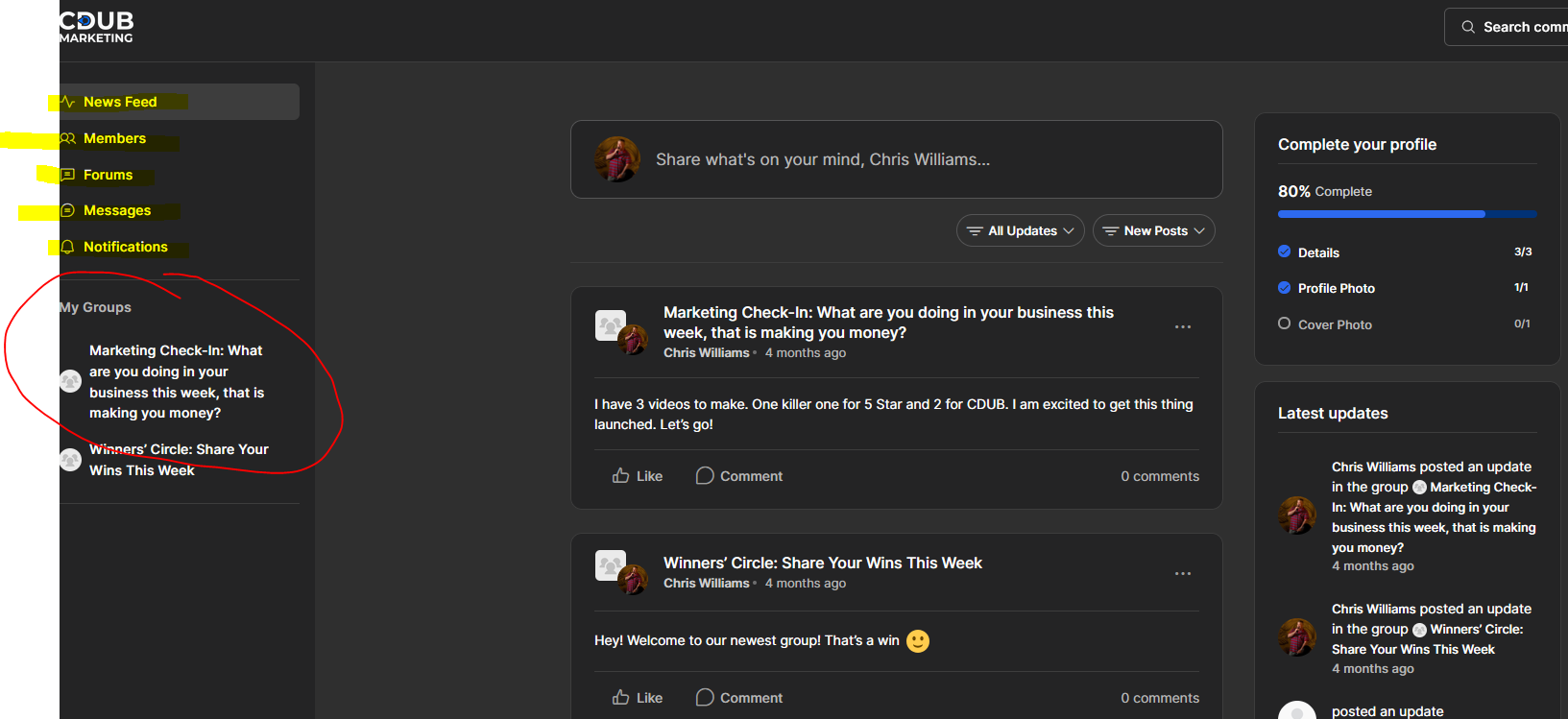
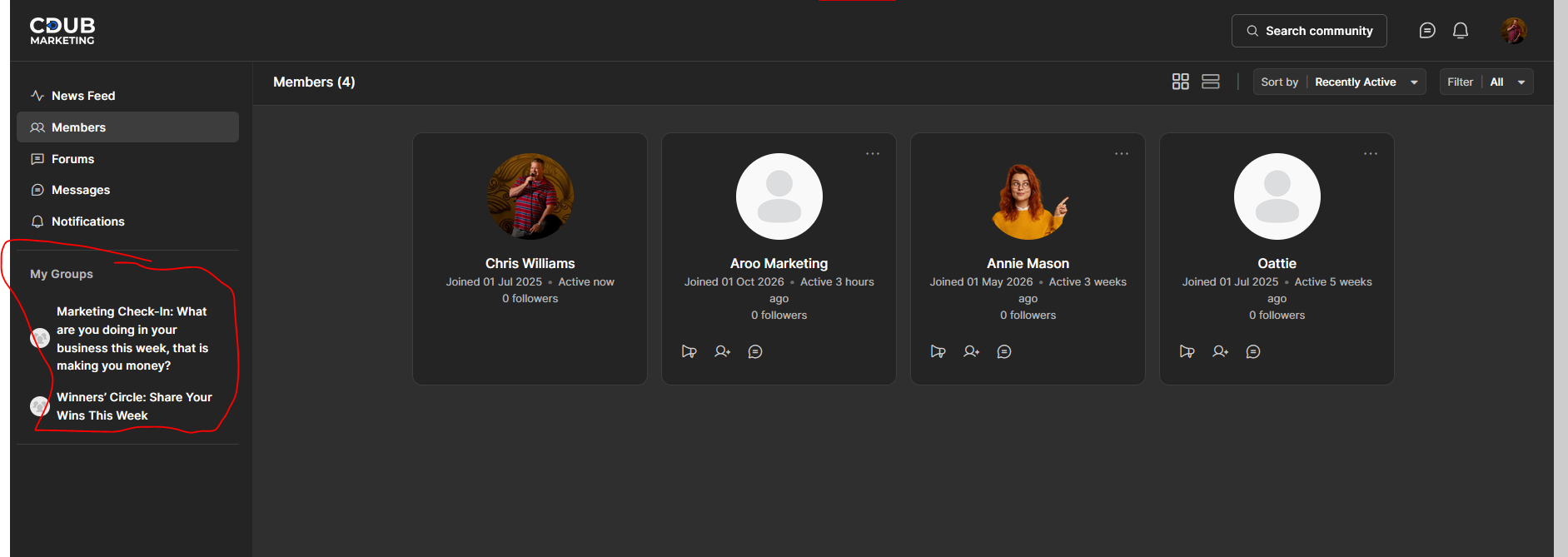
Step 8: Connect With Other Members and Start Your Own Chat Groups
Open Members to find people in the community, then use the message icon to start a conversation. Use Messages to continue your chats and the group conversation options to bring members together around a shared goal. Introduce yourself, ask a thoughtful question, and build from there.
Make Your Next Visit Count
Bookmark your courses page. Finish one lesson. Try one idea. Share one question or win with the community. Small actions build momentum.
Member Log In →